Timeline Basics
The timeline is where you arrange your video. Each clip, image, text overlay, and audio file gets its own row.
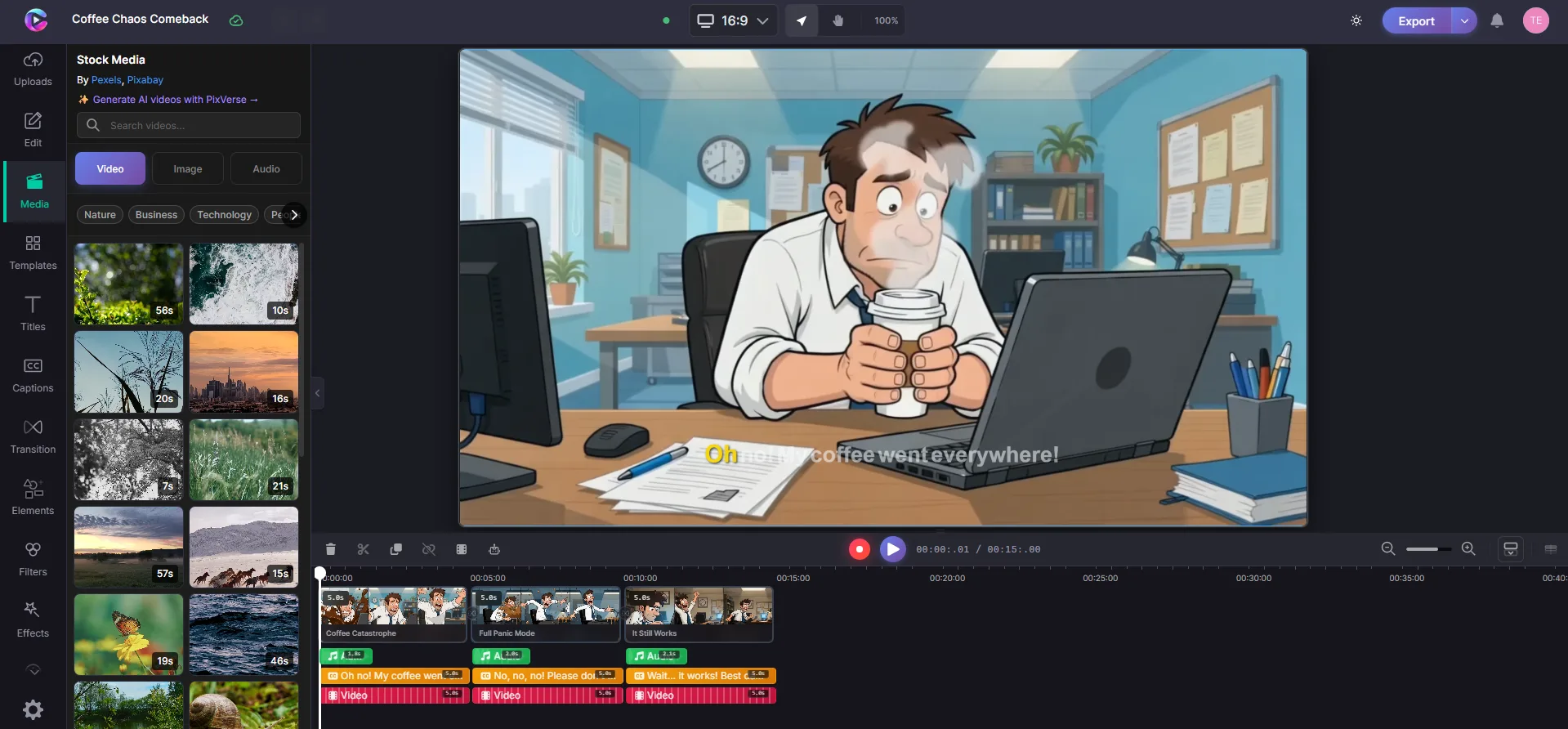
Track types
- Video / Image — visual content shown on the canvas
- Text — titles, captions, and overlays
- Audio — background music, voiceovers, sound effects
- Shapes — graphic elements and backgrounds
Items higher in the list appear on top of items below them on the canvas.
Arrange your clips
- Drag left/right to change when a clip starts or ends
- Drag up/down to reorder layers
- Trim — hover the edge of any clip and drag to shorten or extend it
- Right-click a clip to copy, duplicate, split, or delete
Snap alignment
When you drag a clip near another clip or the playhead, it snaps into alignment. A yellow line shows when snapping is active — this keeps your timeline clean and precise.
Zoom and navigate
- Zoom slider — zoom in to edit frame-by-frame or zoom out to see the full project
- Scroll horizontally to move through your timeline
- Mini-map — a small overview bar at the top shows your entire project. Click anywhere to jump to that point
Timing
The playhead shows your current position as MM:SS.mm. The total project duration is at the end of the timeline. Drag clip edges to adjust timing.