Captions & Subtitles
Add captions to any video with spoken audio — generated automatically or typed manually.
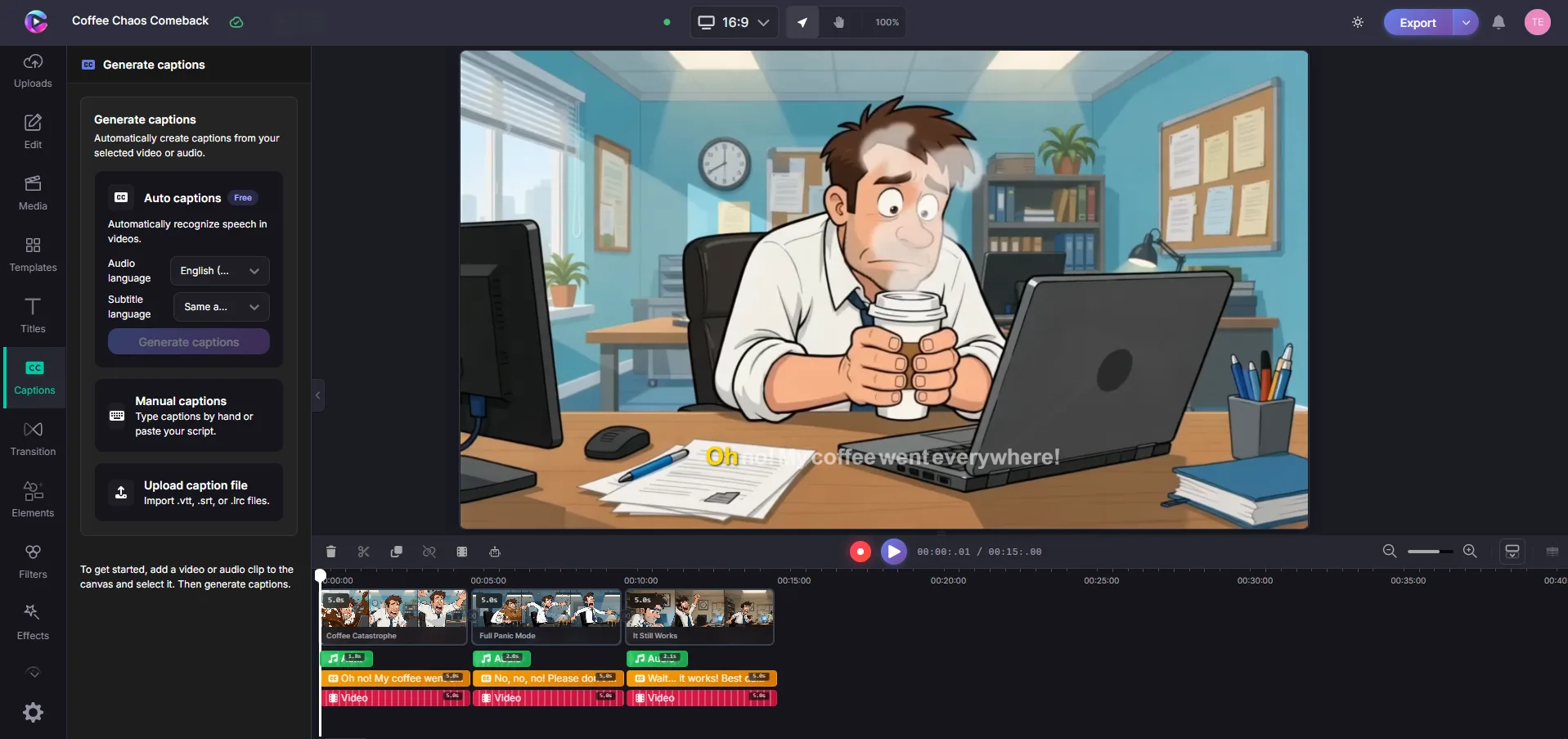
Auto-generate captions
- Select a video or audio clip on the timeline that has spoken audio
- Click Captions in the toolbar
- Click Generate Auto Captions
The AI listens to the audio and creates timed captions for every word. They appear as a new text track on the timeline.
Add captions manually
- Click Text in the toolbar
- Choose Caption from the preset styles
- Type your text
- Position it on the canvas where you want captions to appear
For longer videos, add multiple caption blocks and time each one to match your audio.
Style your captions
Select any caption on the canvas or timeline to open the Properties panel:
- Font — choose from the font library
- Size — adjust text size
- Color — pick any color for the text
- Background — add a solid or semi-transparent background behind the text (recommended for readability)
- Position — drag captions to the bottom, top, or side of the canvas
- Alignment — left, center, or right
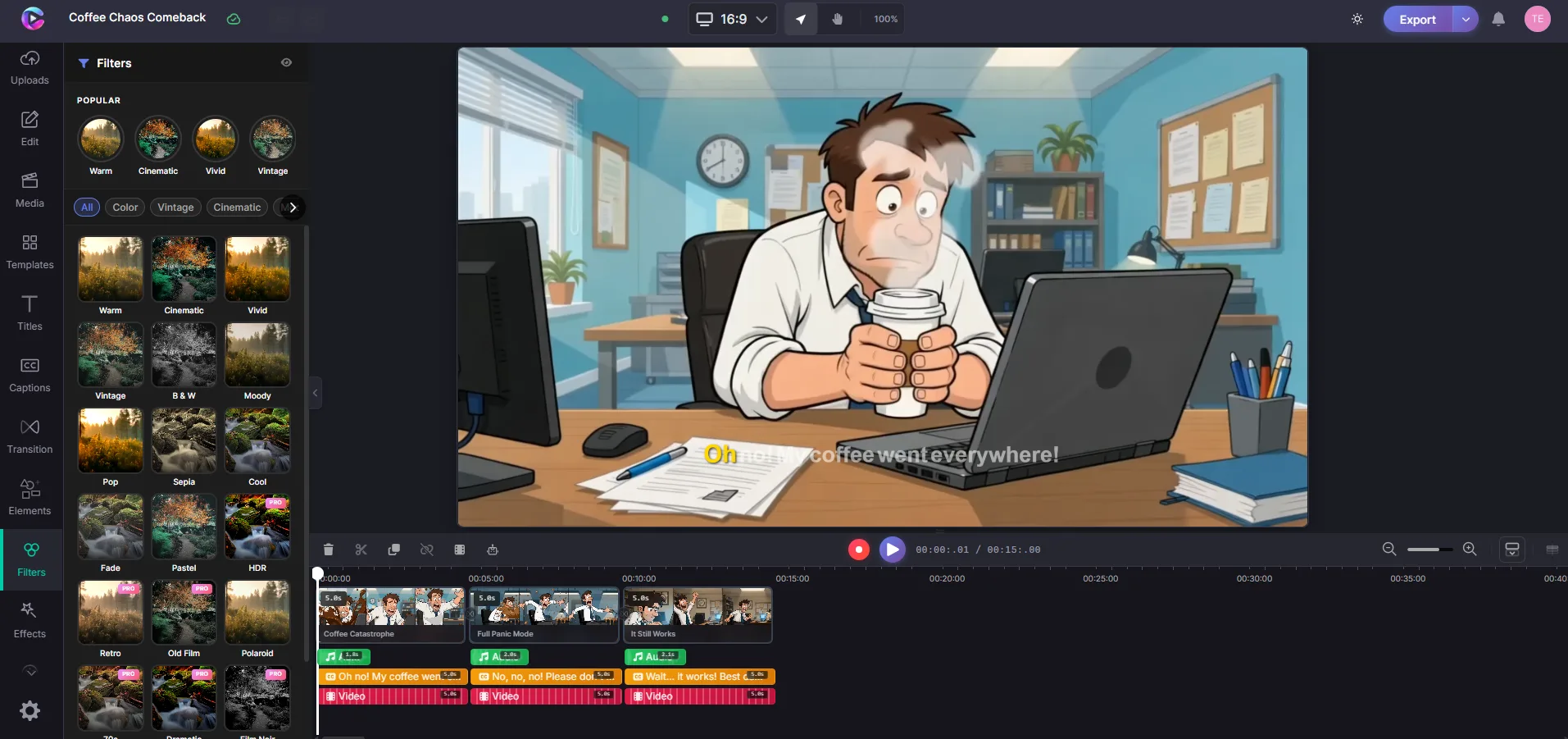
Caption styles presets
Apply a pre-built style to keep captions consistent across your video:
- Select a caption on the canvas
- In the Properties panel, click Style Presets
- Pick from styles like: Standard White, Dark Mode, Neon, Minimal, Brand
Tips
- Place captions in the lower third of the video for standard readability
- Use a background behind text so captions are readable over any video
- Keep captions to 2 lines max for quick reading
- Auto-captions are a starting point — review and fix any misheard words