Styles & Brand Kit
Keep your videos on-brand with consistent colors, fonts, and styles across every project.
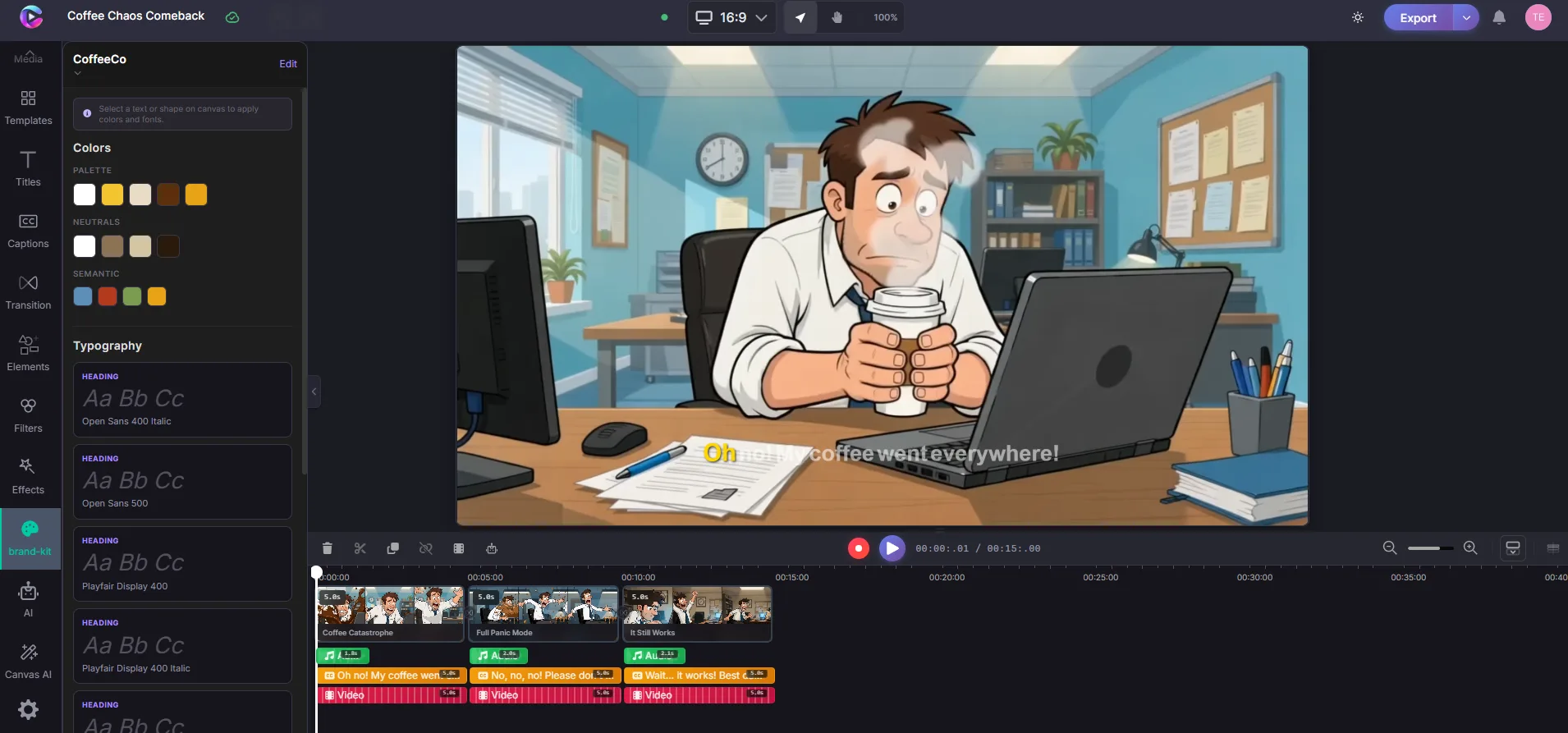
Brand Kit
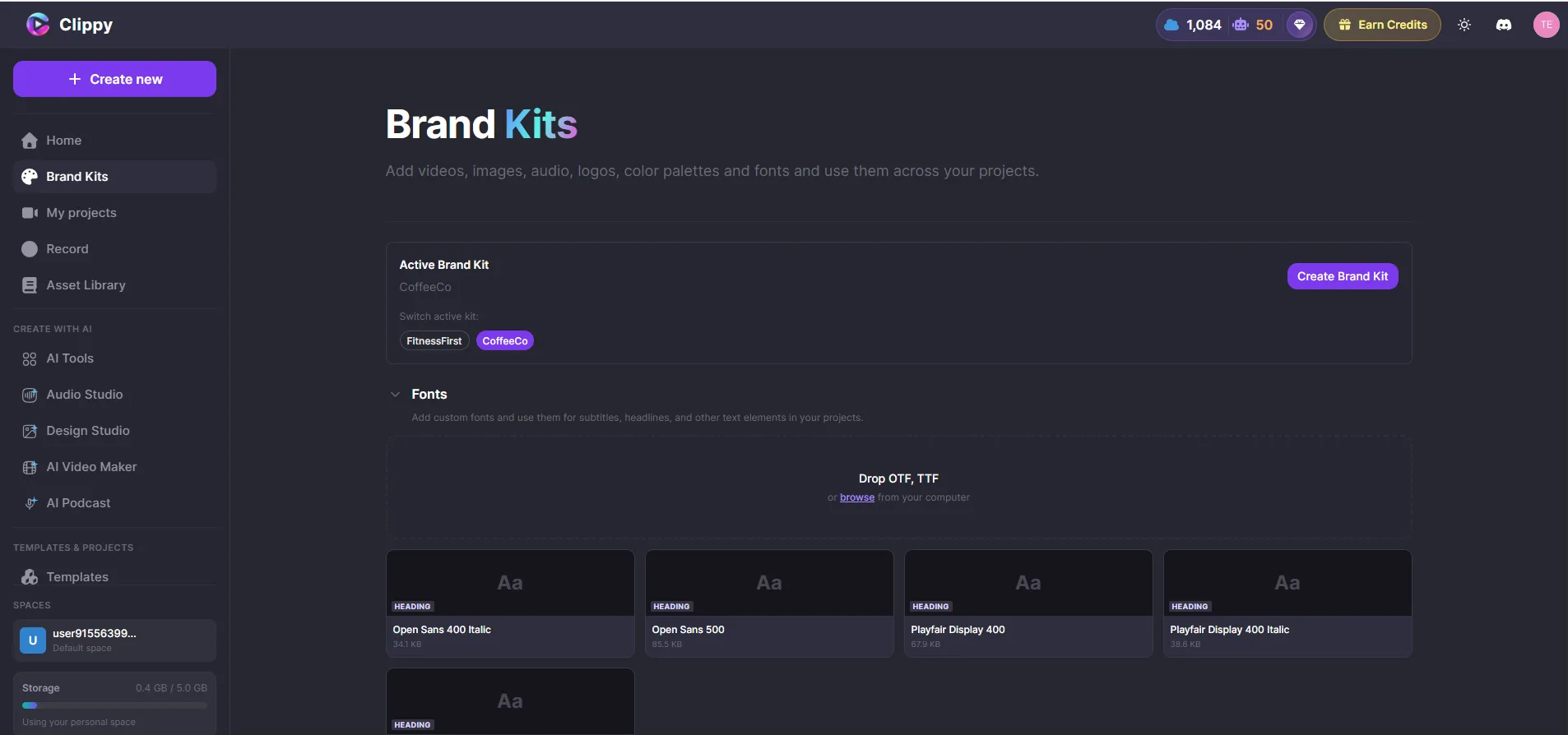
The Brand Kit lets you save your brand's visual identity so every video uses the right look automatically.
Set up your brand
- Click Brand Kit in the sidebar
- Add your brand colors — enter hex codes or use the color picker
- Choose your brand fonts — select from the font library
- Upload your logo — appears as a watermark or overlay option
Once saved, these settings are available in every new project.
Apply brand styles
When you add text or captions, click Brand Styles in the Properties panel to apply your saved brand font and colors with one click.
Text presets
Save any styled text as a preset to reuse later:
- Style your text — font, size, color, shadow, background
- Click Save as Preset in the Properties panel
- Give it a name
- Next time, pick it from the presets list instead of styling from scratch
Consistent look across projects
- Colors — your brand palette is always available in the color picker
- Fonts — your brand fonts appear at the top of the font list
- Logo — insert your logo as an overlay with one click
- Export — every video follows the same visual rules
Tips
- Use 2–3 brand colors max for clean, professional videos
- Pick fonts that work at small sizes (for captions) and large sizes (for titles)
- Update your Brand Kit whenever your brand guidelines change — existing projects keep their current styles