Creating Your First Project
Start a new project
- Sign in at clippy.io
- Click New Project on your dashboard
- Give it a name and choose a format:
- 16:9 — widescreen landscape
- 9:16 — vertical for Stories / TikTok / Reels
- 1:1 — square for social posts
- Click Create
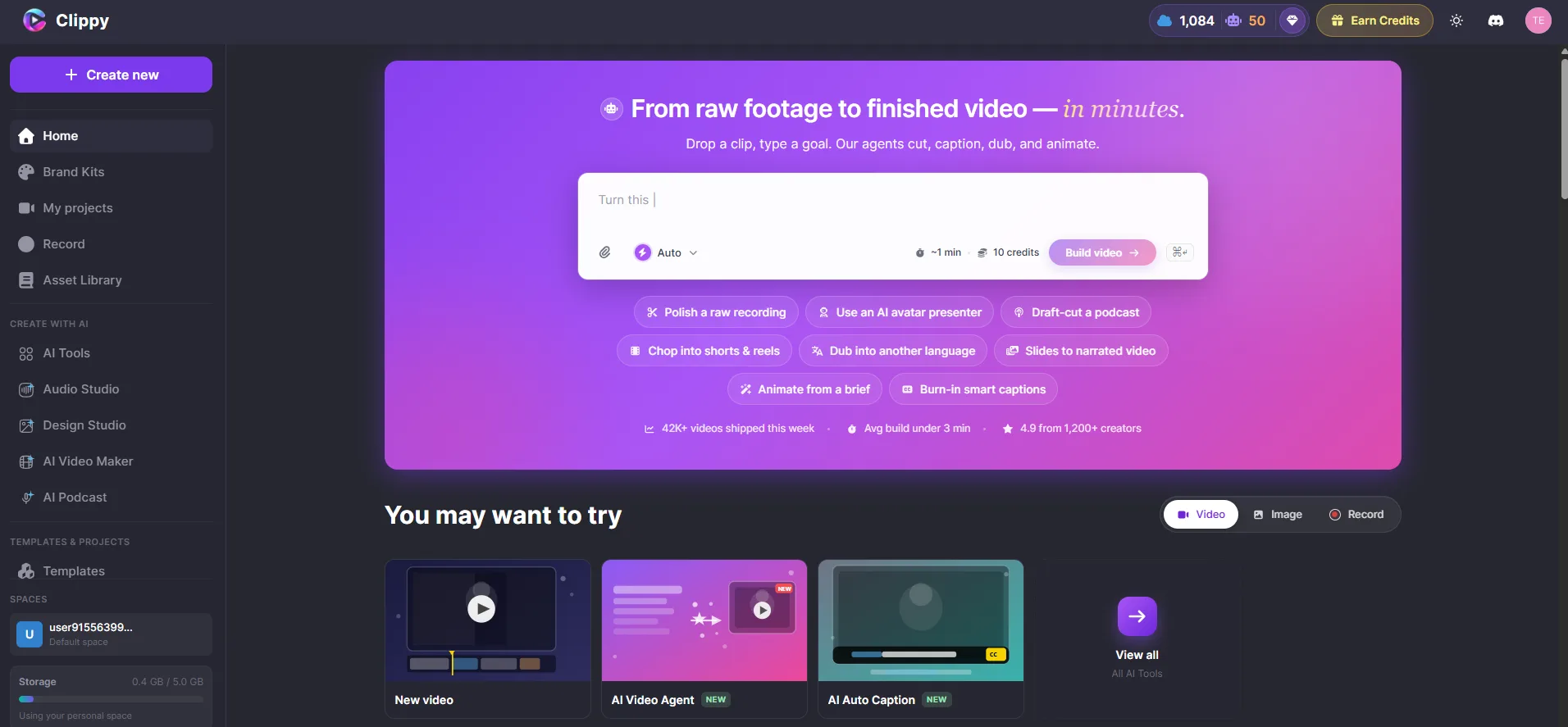
The editor at a glance
┌─────────────────────────────────────────────────┐
│  Top bar: project name, undo/redo, export       │
├─────────────────────┬───────────────────────────┤
│                     │                           │
│   Media Library     │   Canvas Preview          │
│   (add your         │   (what your video        │
│    assets here)     │    looks like)            │
│                     │                           │
├─────────────────────┴───────────────────────────┤
│  Timeline: arrange and time your media          │
│  Playback controls: play, pause, scrub          │
└─────────────────────────────────────────────────┘
Add your first media
- Upload — drag video files, images, or audio from your computer
- Stock — search Unsplash or Pexels photos without leaving the editor
- AI Video Agent — type a description and generate scenes automatically
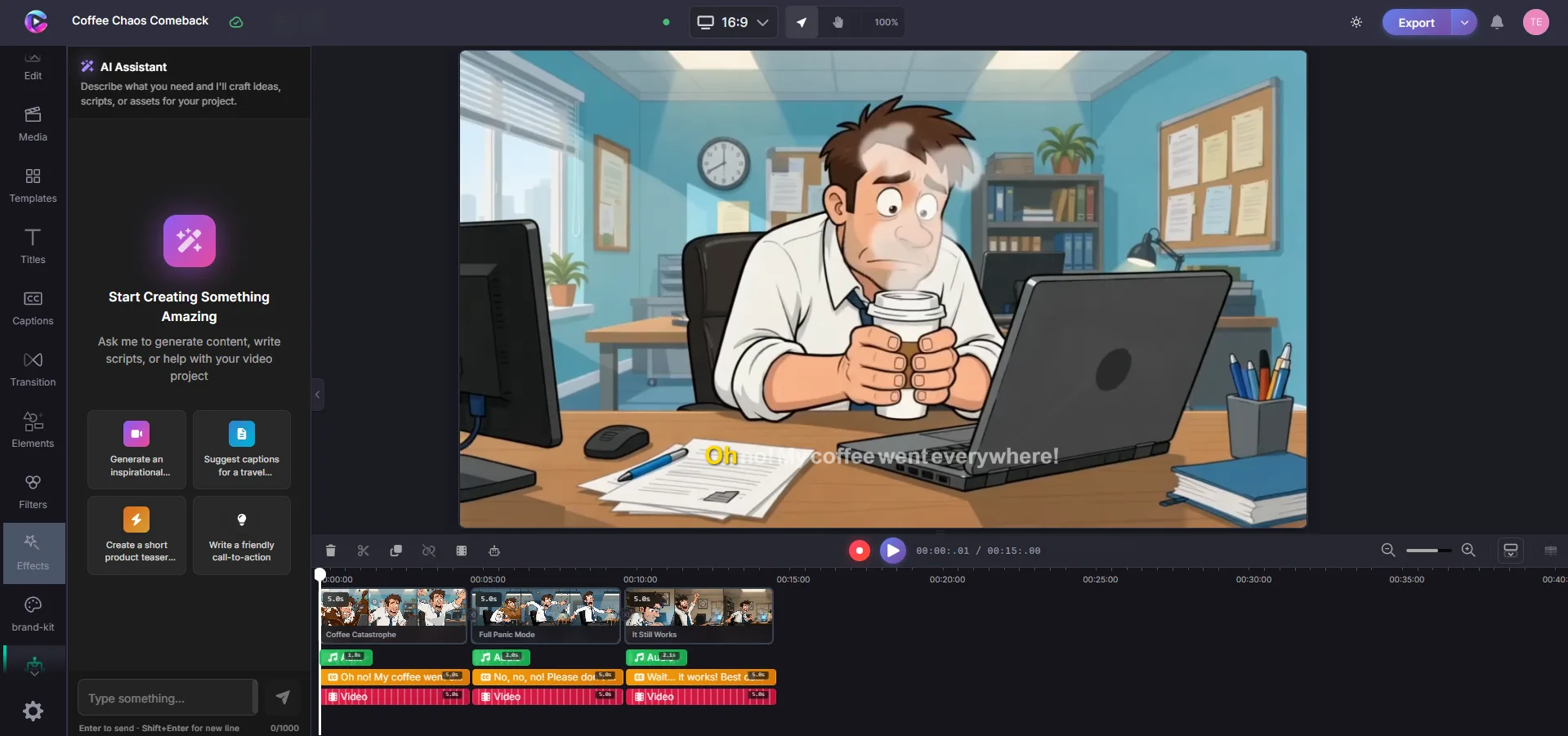
Preview your video
Use the controls below the canvas:
- Play / Pause — preview your timeline
- Scrub — drag the playhead to jump to any moment
- Fullscreen — view your video at full size
Your project auto-saves. Close and come back anytime from your dashboard.