Text and Shapes
Add titles, captions, and graphic elements to your video directly on the canvas.
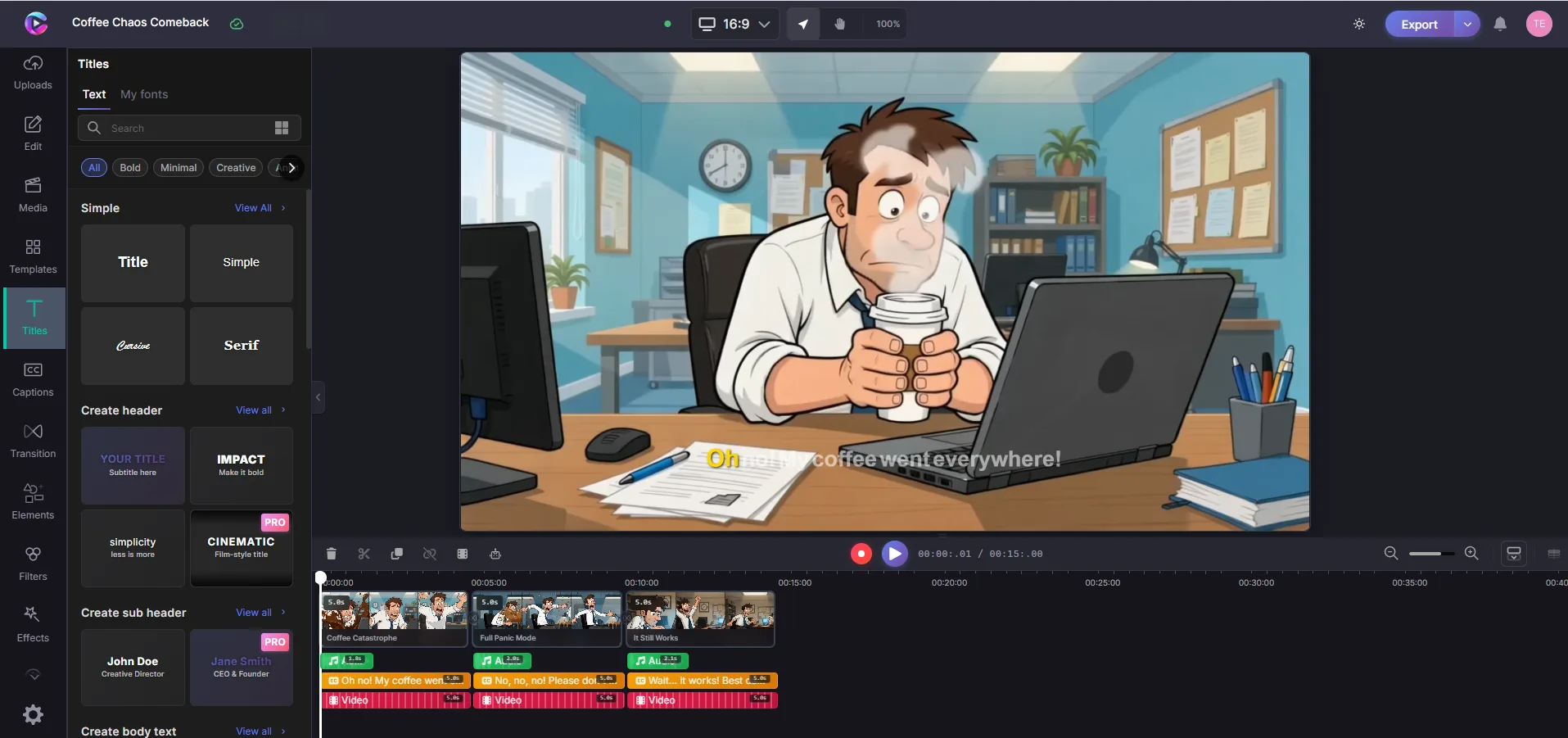
Adding text
- Click Text in the toolbar above the canvas
- Choose a preset style or start with a blank text box
- Type your text — it appears on the canvas immediately
- Use the Properties panel on the right to style it
Style options:
- Font family and size
- Bold, italic
- Color and background
- Alignment (left, center, right)
- Letter spacing and line height
- Outline and shadow
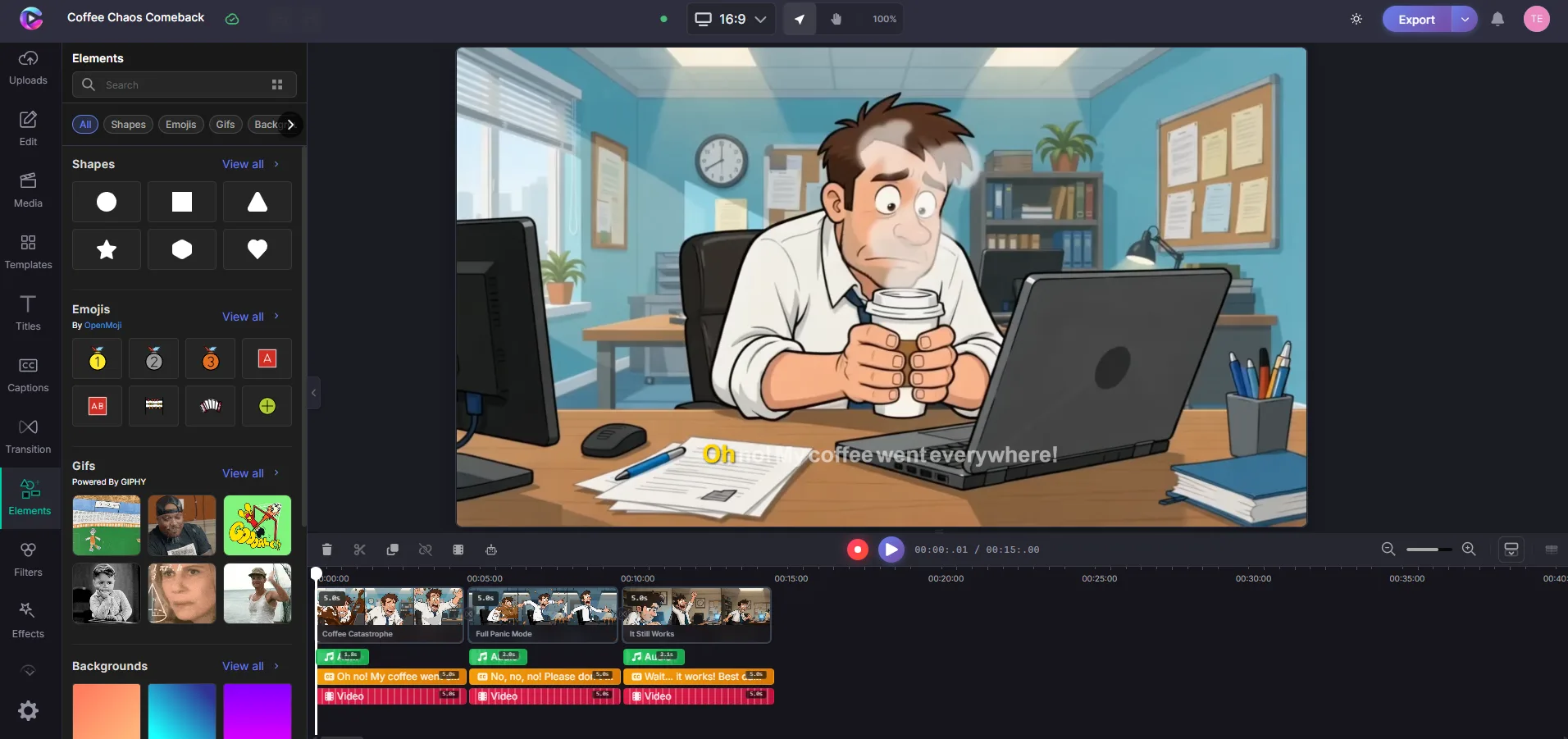
Adding shapes
- Click Shapes in the toolbar
- Pick a shape — rectangle, circle, line, or arrow
- It appears on the canvas. Drag to position, drag corners to resize
Shape options:
- Fill color and opacity
- Border width and color
- Corner radius (for rectangles)
- Rotation
Position and resize
Click any element to select it:
- Drag to move
- Drag corners to resize
- Rotate handle (above the element) to rotate
- Properties panel for exact position, size, and rotation values
Layer order
Elements stack in the order they appear on the timeline. Drag items up or down to change which one is in front.
Animations
Every text and shape element can have entry and exit animations. Select an element, open the Properties panel, and choose an animation style and duration.