Animations and Effects
Bring your video to life with animations. Every element on your timeline can have an entrance, an exit, or both.
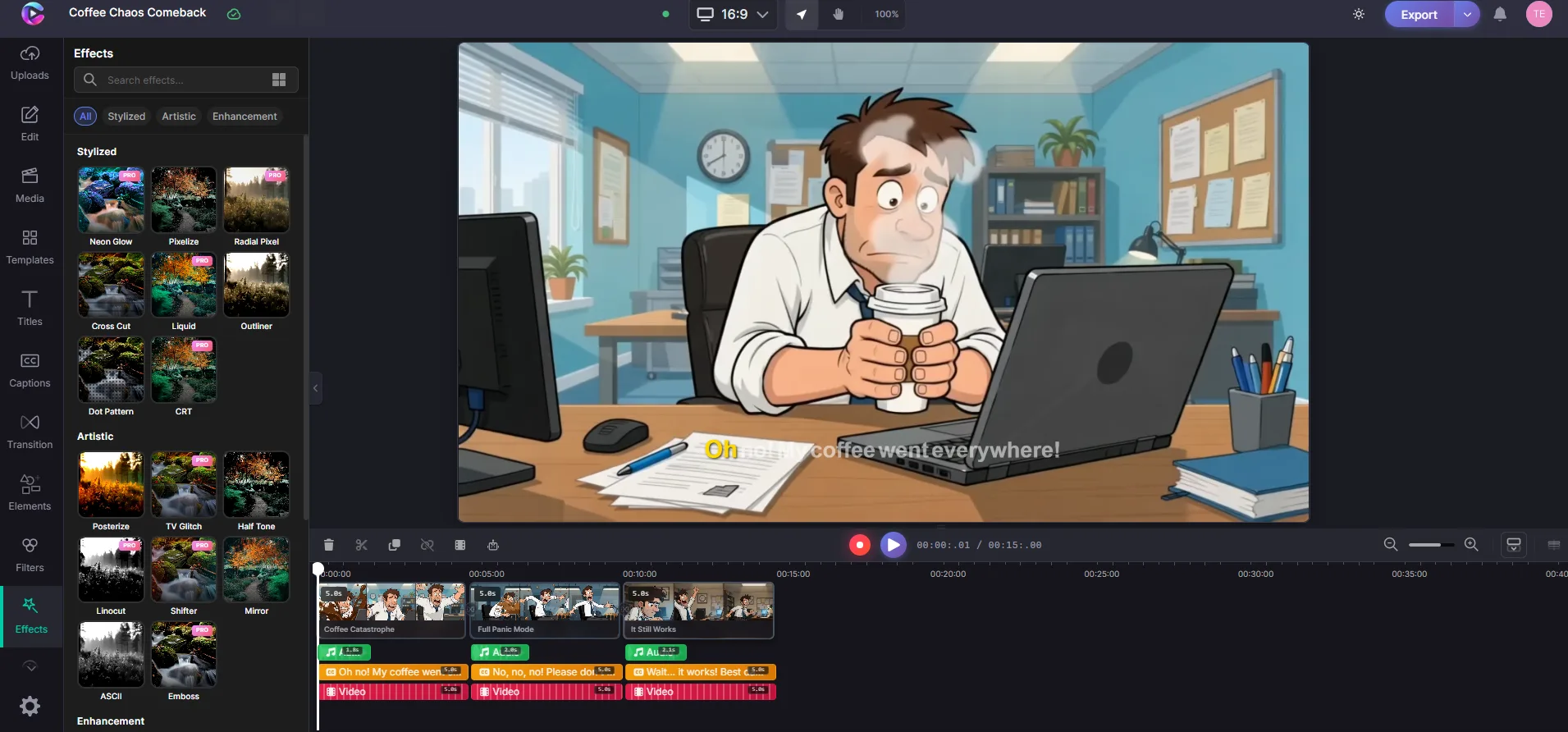
Add an animation
- Select an element on the timeline or canvas
- Open the Properties panel on the right
- Under Animation In, pick how it enters
- Under Animation Out, pick how it leaves
- Set the Duration (how long the animation takes)
Styles available
| Style | Looks like |
|---|---|
| Fade | Fades in or out, including Fade In Down, Fade In Up, Fade In Left, Fade In Right |
| Slide | Slides in from any direction |
| Zoom | Scales in or out from center |
| Bounce | Bounces in with energy |
| Rotate | Rotates in with a spin |
| Flip | Flips in from any axis |
| Attention | Pulses, shakes, wobbles, or swings in place |
Scene transitions
Between scenes, you can add transitions for a polished look:
- Place two clips so they overlap on the timeline
- Click the overlap area
- Pick a transition — crossfade, slide, zoom, wipe, and more
Tips
- Fast animations (300–500ms) feel snappy and modern
- Slow animations (800–1200ms) feel cinematic and smooth
- Apply animations to text and graphics, not just video clips
- Use the same animation style throughout for a consistent look
- Preview before exporting to fine-tune timing